Mobile app
Answer customers from your phone.
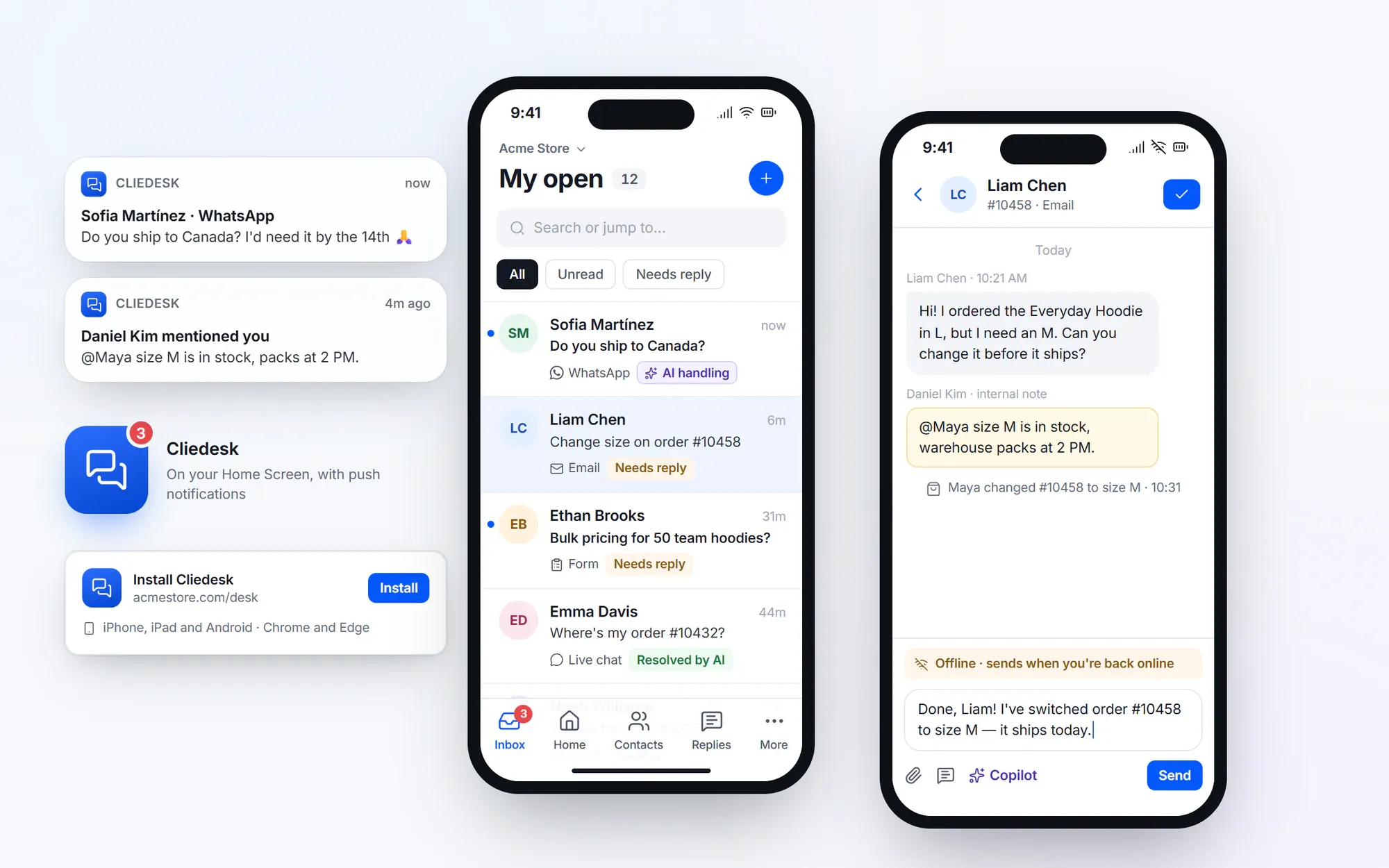
The Cliedesk agent app at /desk installs on your phone, tablet or computer straight from the browser — there is no app store and nothing extra to buy. Push notifications tell you when a customer writes, and every action you have on a computer is there on the phone.
Support shouldn’t stop when you leave your desk.
- “A customer waited all afternoon because nobody was at a computer.”
- “The phone version of our help desk can read messages but can’t do half the actions.”
- “I lost a reply I typed on the train when the signal dropped.”
- “I either get an email for every single thing or I miss what matters.”
How it works
The whole help desk in your pocket
Installable web app
Install it from the browser in seconds
The helpdesk at /desk is an installable web app. Open it in Chrome or Edge and choose Install, or in Safari on iPhone and iPad choose Share, then Add to Home Screen. It opens in its own window with the Cliedesk icon, and you sign in with your normal WordPress account.
- Works on Android, iPhone, iPad, Windows and macOS
- Everyone with access to Cliedesk can install it
- No separate app in an app store, so new features reach phones the day they ship
Every action on the phone
The same inbox you use on a computer
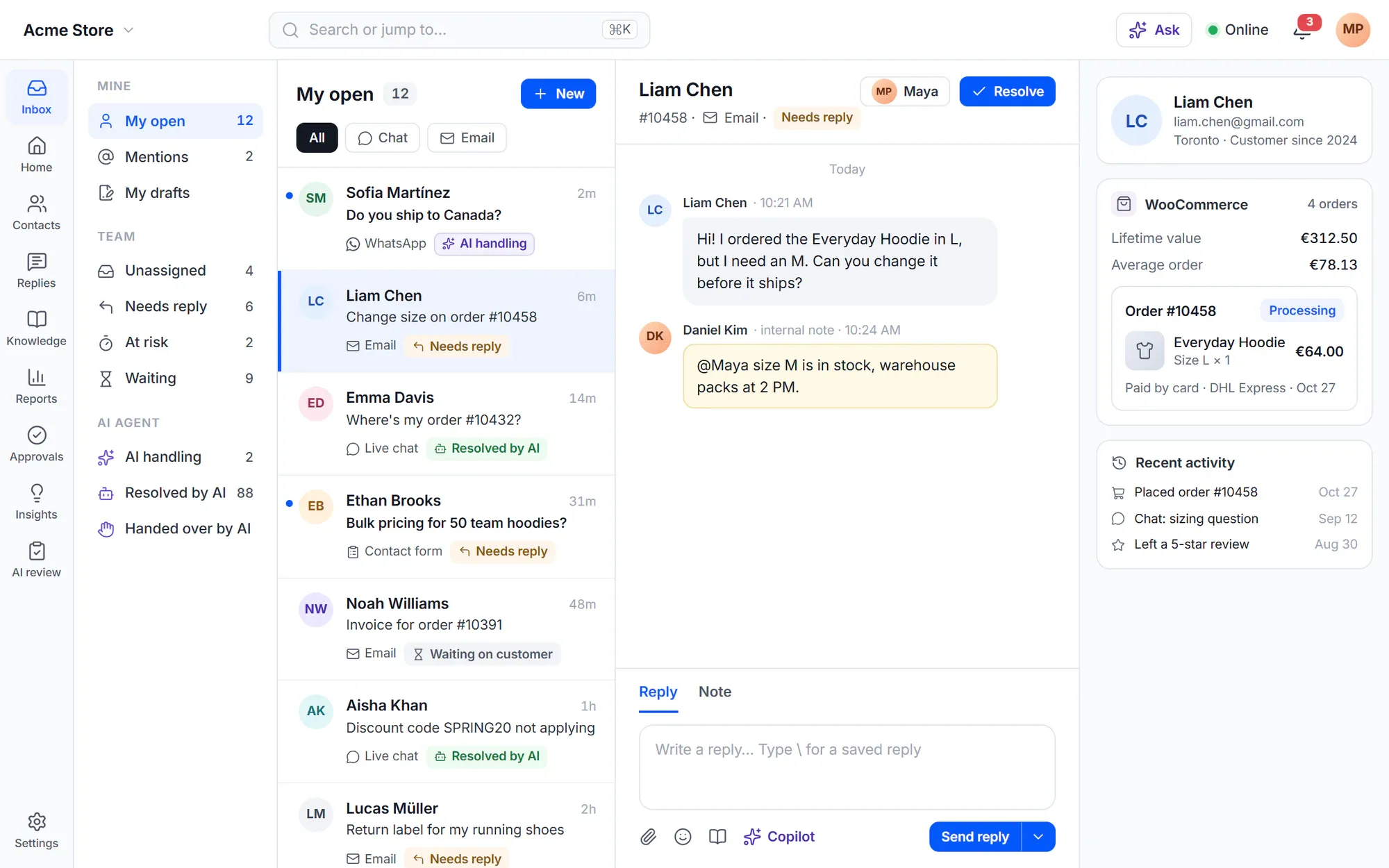
Every button on a conversation on a computer is also on a phone: reply, add a note, assign, change the status. Your role and permissions are the same on every device. On a phone the views fold behind one button above the list, so the conversations come first.
- Change My status to Online or Away, and routing uses it at once
- Notifications you read on the phone are read on every other device too
- The same unread count on the Inbox, the browser tab and the WordPress admin bar
Notifications
Hear about what needs you — and only that
Choose for each event whether you get it in the app and by email. Push notifications reach your phone even when Cliedesk is closed.
-
Push to your phone
Turn on Push notifications on this device in My profile. Tap a push to open the conversation. On iPhone and iPad, add the app to the Home Screen first (iOS 16.4 or later).
-
Email, one by one or as a summary
Get one email per notification, one summary every hour or one summary a day. When nothing is waiting, no summary is sent.
-
Only my conversations
Turn on Only my conversations for an event to hear about it only for conversations assigned to you.
-
Quiet hours
Set a From and To time with no push notifications and no sounds.
-
Hide the message text
Let a push show only its title, so the customer’s words stay inside the app.
-
Nothing goes unopened
If nobody opens a new customer message, Cliedesk tells the assignee, then the online team, then every online agent. The default is 3 minutes.
Who hears about what
The right person gets each alert
| Event | Who gets it |
|---|---|
| Someone mentions me | The person mentioned |
| A conversation is assigned to me | The new assignee (not when you assign yourself) |
| A customer replies to my conversation | The assignee |
| A customer starts a new conversation | The conversation’s team, or everyone who may work on it — even with Cliedesk closed |
| An approval is waiting for me | The approver |
| A customer I own writes in | The contact’s owner |
-
Someone mentions me
- Who gets it
- The person mentioned
-
A conversation is assigned to me
- Who gets it
- The new assignee (not when you assign yourself)
-
A customer replies to my conversation
- Who gets it
- The assignee
-
A customer starts a new conversation
- Who gets it
- The conversation’s team, or everyone who may work on it — even with Cliedesk closed
-
An approval is waiting for me
- Who gets it
- The approver
-
A customer I own writes in
- Who gets it
- The contact’s owner
You don’t need to create teams: without teams, every agent is told about new conversations. People only get conversations of the products they may work on.
Signal drops
Write offline, send when you’re back
- 1
Keep writing
If you lose the connection while you write, Cliedesk keeps your reply or note on the device.
- 2
Back online
It sends the reply once and tells you: “Messages written offline were sent.”
- 3
Nothing sent blind
If the customer wrote again meanwhile, your reply is held and you see the new messages. Choose Send anyway, Edit or Discard.
For admins
Set the defaults for your team
- Choose the notifications everyone gets until they change their own
- Lock an event so everyone gets it and nobody can switch it off
- Set the minutes before unopened customer messages escalate, or turn it off
- Leave the message text out of notification emails
- Setup Health shows when a security plugin blocks the app’s offline page or push notifications
In the free plugin: the installable agent app with every action on a phone, offline drafts, push notifications, quiet hours and hourly or daily email summaries — for unlimited agents. Cliedesk Pro adds: alerts in Slack, Microsoft Teams and by SMS, smart filtering of low-urgency alerts, answering a notification email directly, SLA-risk alerts, and custom or automatic statuses such as Away when the app is closed.
Compare plansFrequently asked questions
Can’t find your answer? Search the docs or ask us.
Search the docs →Get support →Is there a Cliedesk app in the App Store or Google Play?
No. The agent app is an installable web app: you add it from the browser at /desk — Install in Chrome or Edge, or Share then Add to Home Screen in Safari on iPhone and iPad. It opens in its own window with the Cliedesk icon.
Do push notifications work on iPhone?
Yes, once you add the app to the Home Screen (iOS 16.4 or later). Then turn on Push notifications on this device in My profile. Turn it on once on each device you use.
Can I do everything on a phone that I can on a computer?
Yes. Every button on a conversation on a computer is also on a phone, and your role and permissions are the same on every device.
What happens if I lose the connection while replying?
Your reply or note stays on the device and is sent once when you are online again. If the conversation changed meanwhile, Cliedesk holds the reply and shows you the new messages first.
Can I get one summary email instead of many?
Yes. In My profile, choose One summary every hour or One summary a day. If nothing is waiting, no summary is sent.
Does the mobile app cost extra?
No. The app, push notifications and email summaries are part of the free plugin, for every agent.
Take your help desk with you.
Install the free plugin, open /desk on your phone and add it to your Home Screen.