Routing & SLA
The right person, on time, every time.
Ticket routing and SLA management, built into WordPress. Queues and round robin give every conversation an owner without a single rule. Add skills, capacity and shifts when you grow, and SLA targets that turn amber before they turn red — all on one set of business hours your customers can see.
Conversations shouldn’t wait because nobody knew they were theirs.
- “The same two people answer everything while the rest of the team waits.”
- “Chats go to agents who closed their laptop an hour ago.”
- “We only find out we missed a VIP’s deadline when they complain.”
- “Customers write on Saturday and have no idea when we’ll answer.”
How it works
Fair, explainable routing — and deadlines you can keep
Queues and assignment
Round robin that only counts people who are really there
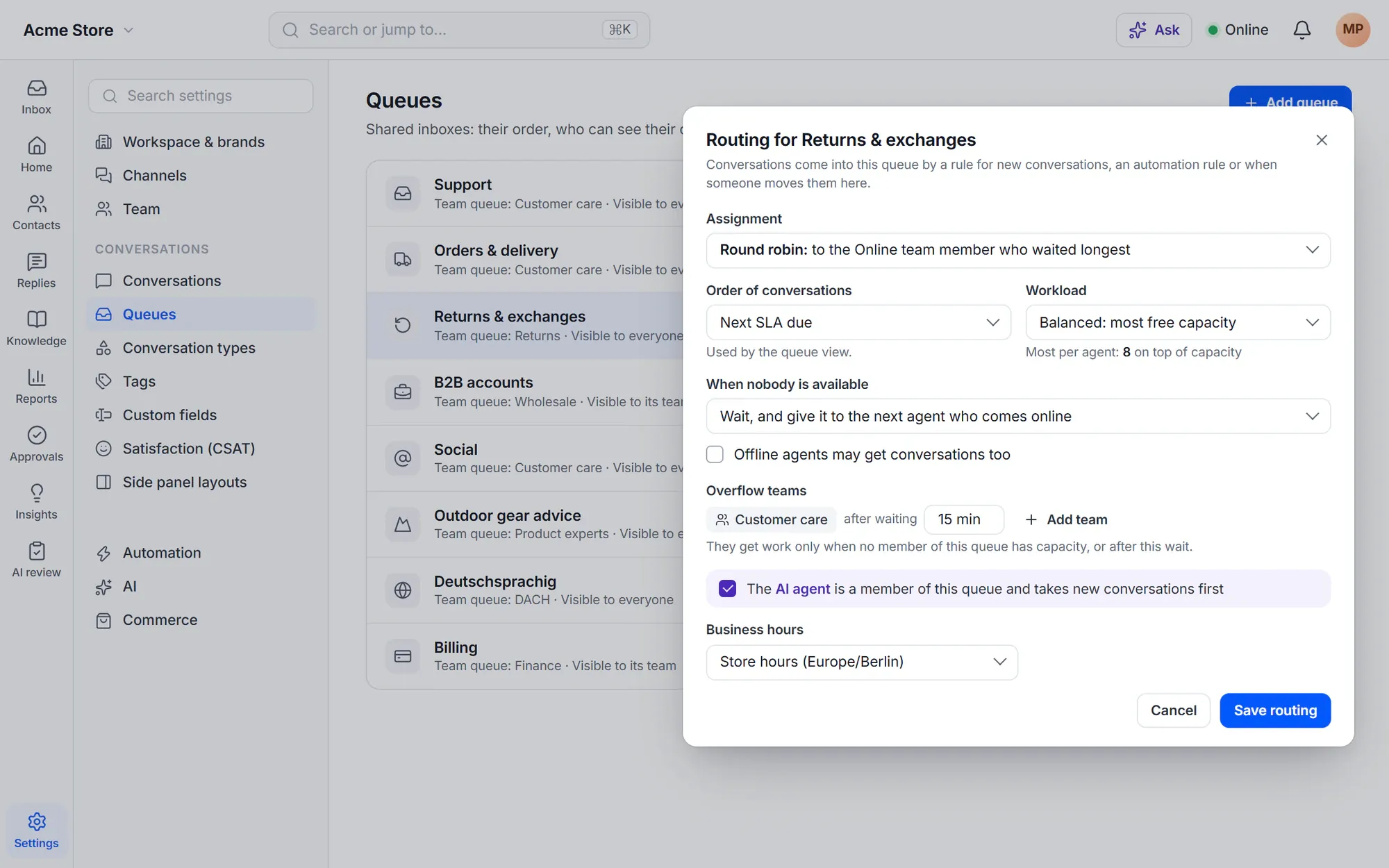
Conversations come into a queue from an arrival rule, an automation or a person, and every product has a default queue. Round robin gives the next one to the Online team member who waited longest — and only to agents seen in the last 5 minutes, so a closed browser gets no work.
- Manual or round-robin assignment per queue
- Priority then oldest, waiting longest or newest first
- When nobody is available: wait for the next agent, or give it to a default person
- The timeline explains every decision: “Routing: assigned to Ana by round robin”

Workload routing
Capacity, skills and shifts for a growing team
Set how many open conversations each agent takes per channel group. Balanced routing gives the next conversation to the agent with the most free capacity; skills send it to people who know the language, product or topic, best level first. Shifts and time off keep work away from people who aren’t working.
- Chat offers with Accept and Decline, and Get next for the next most urgent conversation
- Returning customers go back to the agent who helped them last
- Overflow teams and percentage splits, for example with a partner team
- Conversations without progress go back to the queue

Business hours
One schedule for rules, the widget and the promise you make
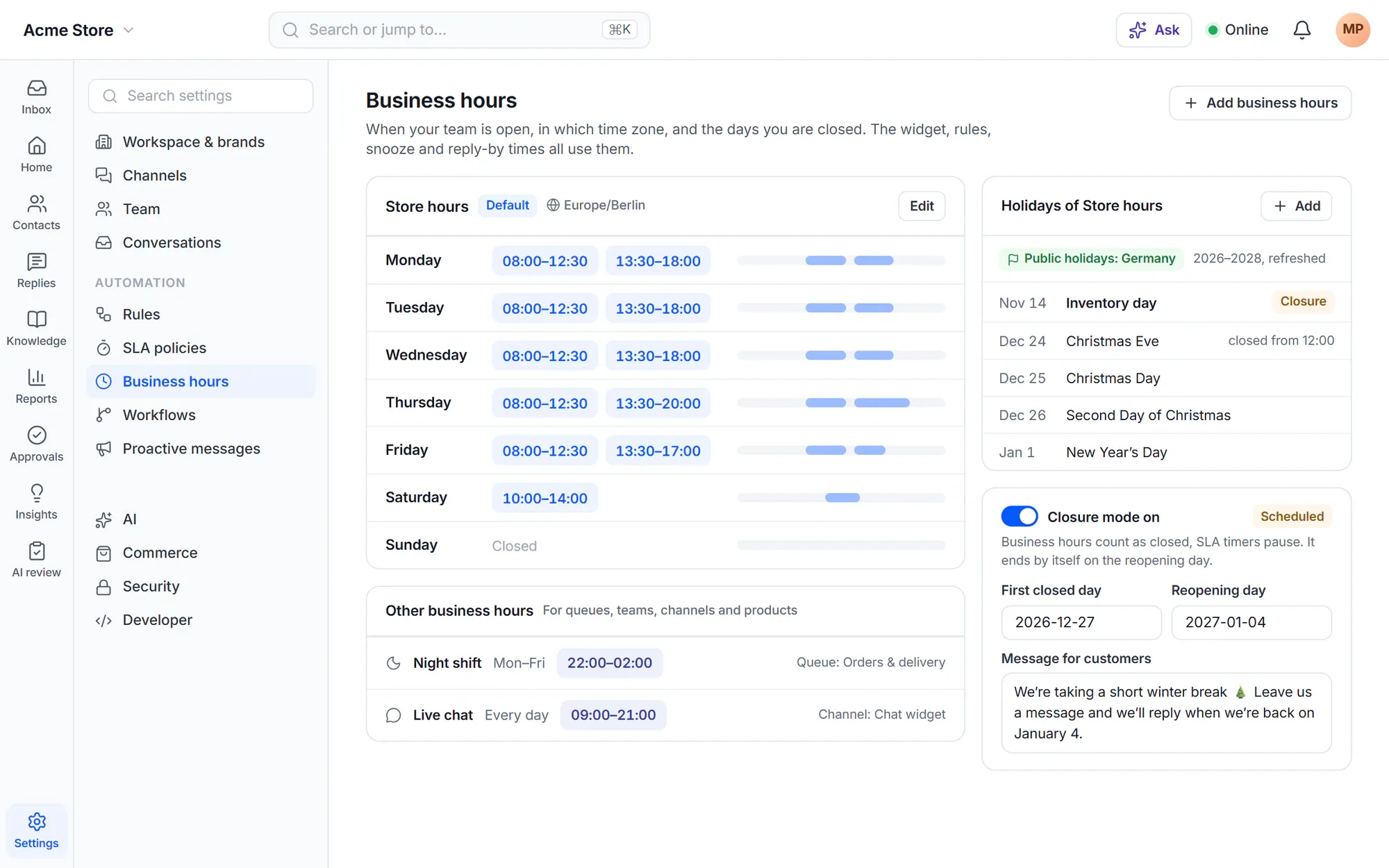
Set your hours in 15-minute steps, with ranges past midnight. Load public holidays for your country, add your own closures, or switch on closure mode with a message when the whole team is away. The same hours drive rules, the widget, agents going offline, snooze times and the reply-by time customers see.
- Up to 6 time ranges a day, in your time zone
- Holidays for this year and the next two, refreshed each week
- Closure mode ends by itself on the reopening day
- More schedules per queue, team, channel or product
SLA policies
Targets per priority — and a warning before the breach
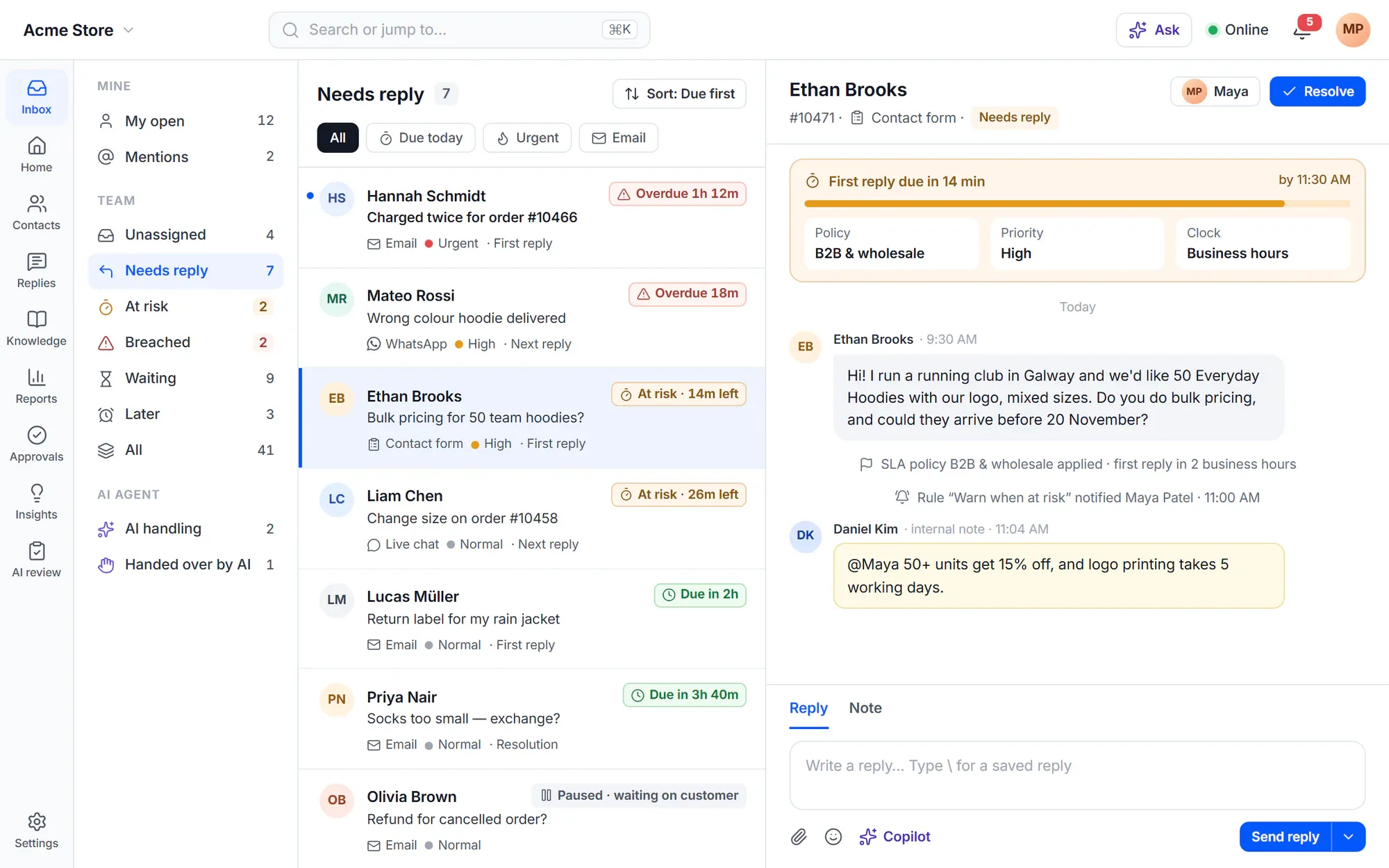
Policies set first reply, next reply, resolution and periodic update targets per priority, for the conversations that match: a product, a channel, an organization, or customers who bought your priority support product. Clocks pause while you wait on the customer and can count business hours only.
- Green, amber and red badges in the inbox, with At risk and Breached views
- Rules start when a target is at risk or breached
- Reopened conversations get fresh targets; the earlier result stays in reports
- Customers see the same reply-by time in the widget, the portal and email
For the people doing the work
Statuses, boards and help from the AI
-
Five agent statuses
Online, Busy, Transfers only, Away and Offline. Assign only keeps someone out of routing while others can still assign to them.
-
Statuses that set themselves
Custom statuses like Lunch for 30 minutes, Away after idle minutes, and Offline when business hours close.
-
Live board
Open, unassigned and waiting per queue, the longest wait, SLA at risk and every agent’s load, updated every 10 seconds — full screen for a wall display.
-
Shifts and forecast
Weekly shifts, time off and a calendar feed per person. The forecast shows expected conversations per hour and hours with too few people.
-
The AI agent as a teammate
Make the AI agent a member of a queue: it takes new conversations first and routing gives them to a person when it hands over.
-
Skill proposals
The AI looks at what each person resolved and proposes skills. Nothing changes until you accept.
Measure it
SLA attainment you can explain
The SLA report shows attainment per policy and target — targets met in time divided by met plus breached — with the hit rate per team, agent, queue, channel, priority, product or topic, and every breached target with the time over.
See reports- Download the breach list as CSV
- SLA at risk on Home and the live board
- Time in each status per agent
In the free plugin: queues, manual and round-robin assignment, the five agent statuses, business hours with holidays and closure mode, and an honest reply-by time. Cliedesk Pro adds: SLA policies and the SLA report, more business hours, capacity, skills and balanced routing, chat offers, Get next, shifts and the live board.
Compare plansFrequently asked questions
Can’t find your answer? Search the docs or ask us.
Search the docs →Get support →Does round robin give chats to agents who closed their browser?
No. Round robin only counts agents who are Online and were seen in the last 5 minutes. You can turn on “Offline agents may get conversations too” if you want everyone included.
Can VIP or paying customers get faster targets?
Yes, with Cliedesk Pro. SLA policy conditions include the organization, the customer’s email domain, their WordPress role and, with WooCommerce, a product they bought — for example a 1-hour first reply for customers who bought priority support.
Does the clock keep running while we wait for the customer?
No. By default, Waiting on customer, Waiting on third party and Snoozed pause every running clock. You can choose to count total resolution time instead, and to count business hours only.
What do customers see outside business hours?
When you open again. The acknowledgment email, automatic messages and the chat widget show the same reply-by time. With an SLA policy, it comes from your first reply target.
Can I see why a conversation went to a certain agent?
Yes. Every routing decision is a line in the conversation timeline — for example “nobody available (4 members): 2 away, 1 offline, 1 outside working hours”.
Give every conversation an owner and a deadline.
Round robin and business hours work the day you install. Add SLA policies and workload routing with Cliedesk Pro.