Customer portal
A support portal in My Account — no new passwords.
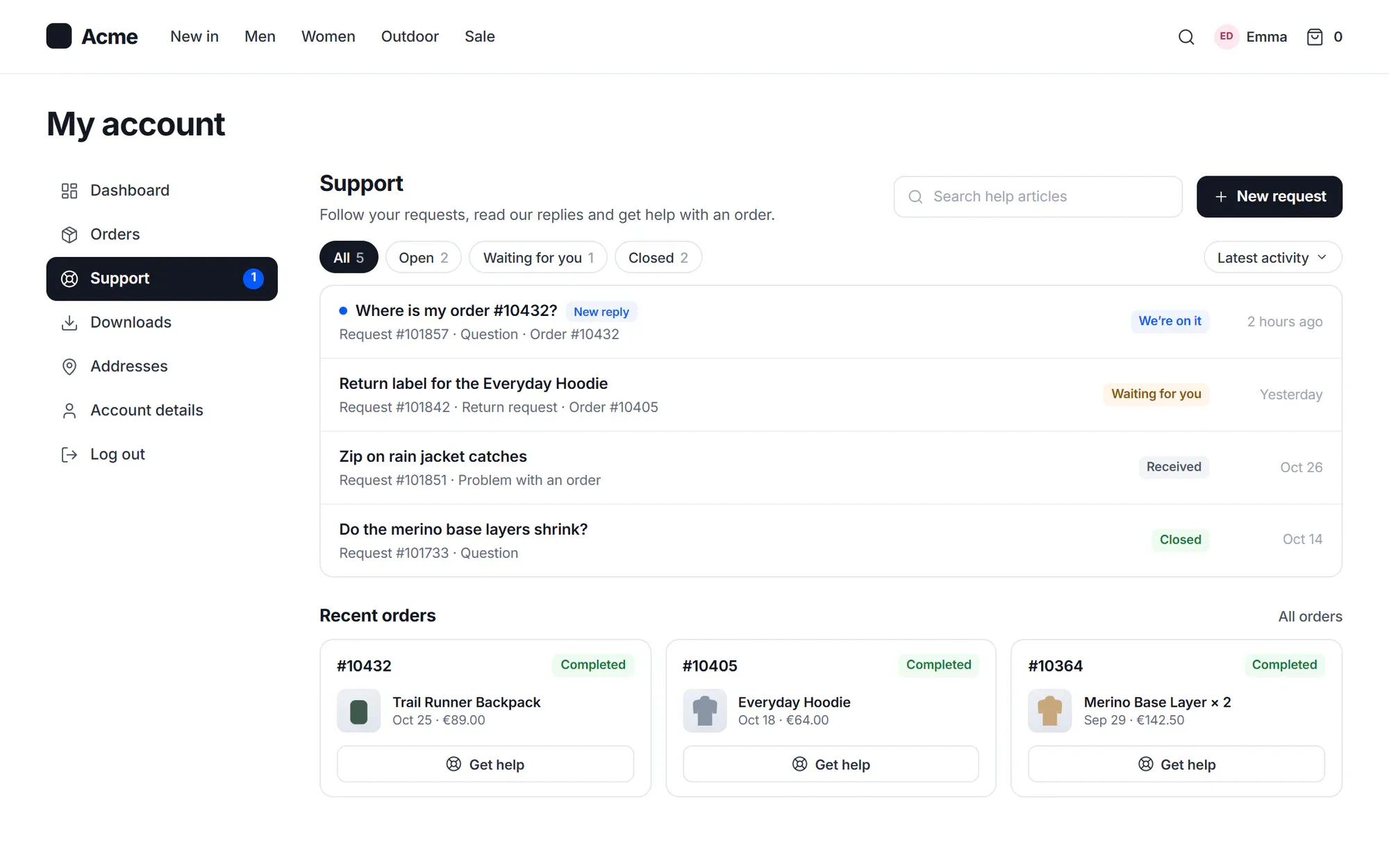
This WordPress customer support portal lets customers see their requests, read replies and answer on your own site: under My Account → Support, at /support/ or on any page you choose. Guests sign in with a code sent to their email, and shoppers can track, cancel or return an order without writing to you.
Customers shouldn’t need another account to ask for help.
- ““Please create an account on our help desk” — and half of them never do.”
- “Customers email again because they can’t see what happened to their request.”
- “Our support site looks nothing like our store.”
- “Every “can I cancel my order?” waits for a person, even when the answer is yes.”
How it works
One portal, wherever your customers already are
Ready on install
Works at /support/ the moment you activate Cliedesk
No page to create. Links in emails, the chat widget and the help center open the portal. It runs as a full-screen portal in the same look as the help desk, with light and dark mode, or inside your theme’s header and footer. With WooCommerce, customers also find it under My Account → Support.
- Put it on any page with the Support portal block or the [cliedesk_portal] shortcode
- Never takes over a page that already uses /support/
- Kept out of search engines
- Block themes can edit the portal template in the site editor
Requests
Every request in one list — with the order already attached
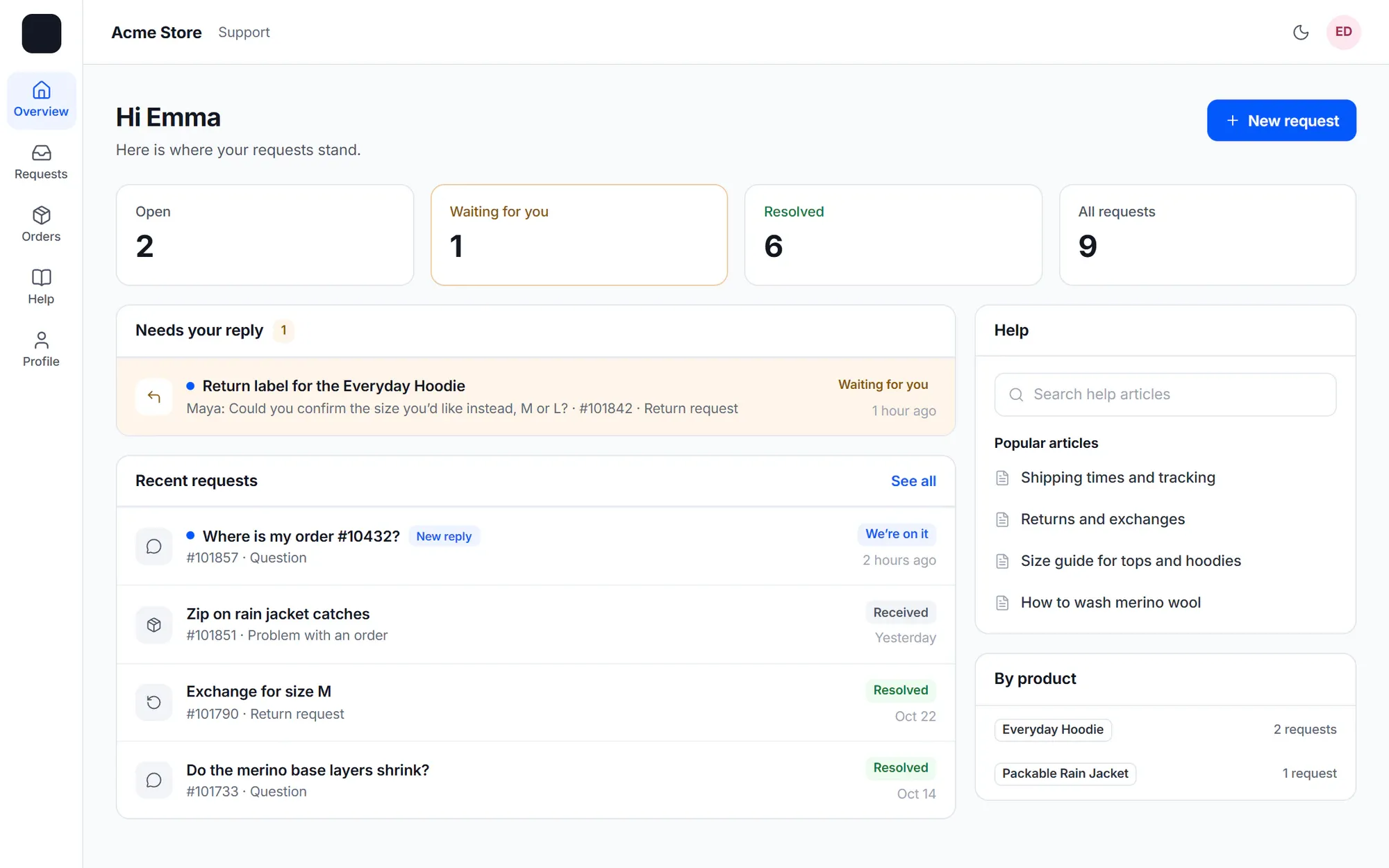
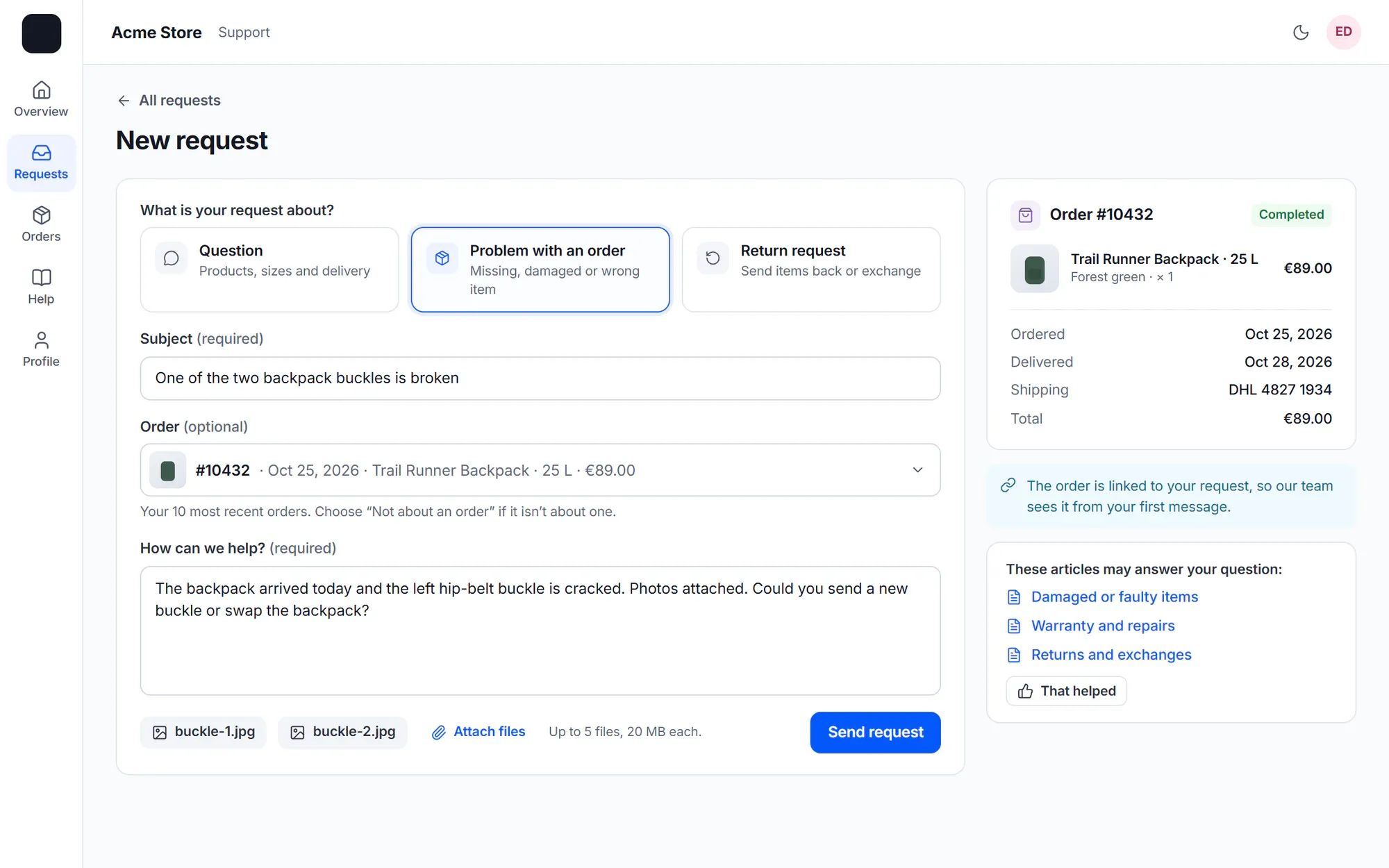
Customers see each request with its number, status, type and last activity, and a “New reply” mark for answers they haven’t opened. A request opens as a chat. New requests start from your request types, and signed-in or verified shoppers pick one of their own orders, so it is linked from the first message.
- Search, filter by open or closed, type and product, and sort
- Up to 5 private files per reply, opened only through short-lived links
- Mark as solved, then rate the conversation
- Internal notes never show in the portal
Order hub
Track, report a problem or get help with this order
With WooCommerce, the portal shows the customer’s 10 most recent orders with their latest shipment. Each order shows its items, totals, addresses, payment and the tracking timeline. When the expected delivery date passes, customers see your delay notice before they think of writing.
- “Get help with this order” sends a request with the order linked
- “Report a problem” shows an answer first, then sends photos to your team if it didn’t help
- “Email me the invoice” and “Email me the download links” resend WooCommerce’s own emails
- Guests verify with an order number and the order’s email address

Self-service
Customers fix common order problems themselves — within your rules
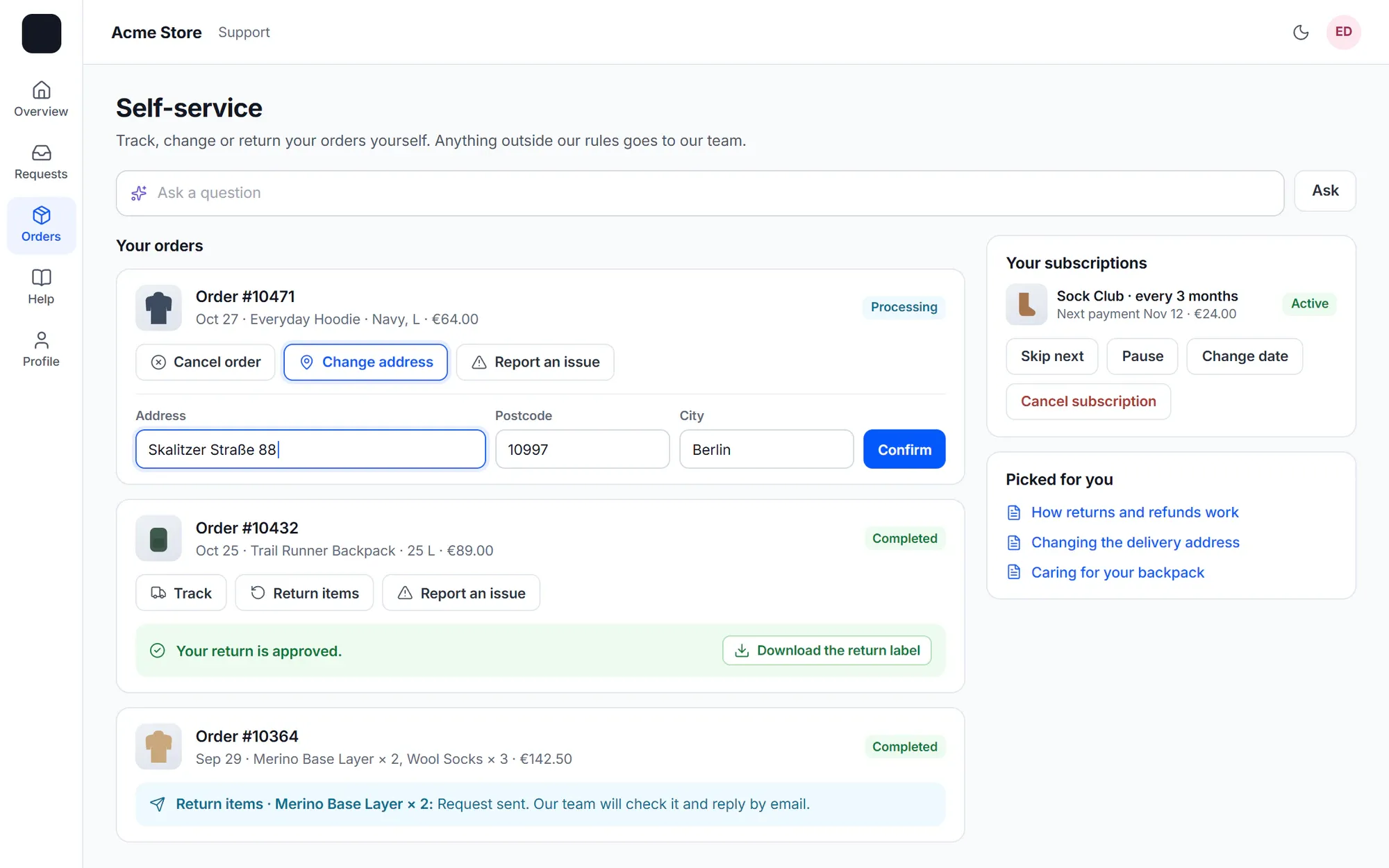
Customers cancel an order, change the shipping address before it ships, return items, reset download links and manage subscriptions and bookings. You choose which buttons show for each order status. Anything outside your commerce rules becomes an approval request for your team, and the customer reads “Request sent”.
- Returns within your policy are approved at once, with the label or your instructions
- Subscriptions: skip, pause, resume, change the payment date or cancel — after a retention offer
- Bookings move only to free times
- Customers only ever see and change their own orders
Built for real customers
Details that make the portal feel like part of your site
-
Sign in without a password
Guests enter their email and get a 6-digit code that works for 10 minutes. Or choose: anyone, signed-in customers and email links, or signed-in customers only.
-
Organizations
Members can see their colleagues’ requests, read only by default. Let chosen members reply, solve and rate for the organization.
-
Your brand
Your logo for light and dark backgrounds, your brand colour on buttons and your favicon. Colours that don’t pass 4.5:1 contrast are refused.
-
Several products
Requests are grouped by product with a product filter, or show one product’s portal with a product attribute on the block.
-
Your customers’ language
The portal follows the page language set by WPML or Polylang. Team replies can show in the customer’s language, marked “Translated by AI”.
-
Help first
Help search and popular articles sit above the requests. Optionally, New request shows only after the customer has searched.
-
Your records
Show customers their own contracts, warranties or other custom records, with only the fields you mark as visible.
-
Secure email links
Reply emails end with “View and reply in the portal”. Turn on secure links to send only the link, without the message text.
-
Ask box
An Ask box answers from your public help articles, with links, and says the answer was written by AI.
WordPress-native
Your customers are already your WordPress users
Customers sign in with their WordPress account. The /desk/login page sits on top of the WordPress login, so your two-factor, captcha, rate-limit and single sign-on plugins keep working, and wp-login.php works as before.
See the help center- Customers use the account they already have on your site
- Theme look or full-screen look, your choice
- Classic themes can override the template in a child theme
In the free plugin: the portal at /support/ and in My Account, guest sign-in with email codes, organizations, and the order hub with tracking and “Get help with this order”. Cliedesk Pro adds: self-service order actions, subscription and booking changes, the AI Ask box and AI-translated team replies.
Compare plansFrequently asked questions
Can’t find your answer? Search the docs or ask us.
Search the docs →Get support →Do customers need an account?
No. Guests can sign in with a 6-digit code sent to their email address, or verify with an order number and the order’s email address. You decide who may use the portal: anyone, signed-in customers and guests with an email link, or signed-in customers only.
Does it work without WooCommerce?
Yes. The portal works on any WordPress site, with or without WooCommerce and with or without the help center. With WooCommerce it adds My Account → Support, the order hub and the order picker on new requests.
Can I put the portal on my own page?
Yes. Add the Support portal block or the [cliedesk_portal] shortcode to any page and choose it as the portal page; email links then open that page. You can also change the /support/ address or show it inside your theme’s header and footer.
Can colleagues see each other’s requests?
If you allow it. Per organization, members see only their own requests, all requests of the organization, or all except some types or queues. Colleagues’ requests are read only unless you let a member reply for the organization.
Can customers cancel or return orders themselves?
Yes, with Cliedesk Pro. You choose which actions show in each order status. Requests within your commerce rules run at once; anything else waits for your team’s approval. Self-service shows in the portal inside your theme and in the portal block.
Will the portal show up in Google?
No. Search engines do not list the portal. Your public help center articles are the pages meant to be found.
Give customers one place to see every request.
Install the free plugin and the portal is live at /support/ — no page to build, no new passwords.